TAgg2D.Viewport(worldX1, worldY1, worldX2, wordlY2, screenX1, screenY1, screenX2, screenY2, opt)
Description
Transforms source coordinates system rectangle into the destination coordinates system rectangle. Viewport transformation includes translation and scaling in one step. Viewport may change orientations, ratios, angles and distances. If the scaling part of transformation is uniform, orientations, ratios and angles are preserved.
Parameters
worldX1: double
X coordinate of Top Left corner of source rectangle [in subpixels].
worldY1: double
Y coordinate of Top Left corner of source rectangle [in subpixels].
worldX2: double
X coordinate of Bottom Right corner of source rectangle [in subpixels].
worldY2: double
Y coordinate of Bottom Right corner of source rectangle [in subpixels].
screenX1: double
X coordinate of Top Left corner of destination rectangle [in subpixels].
screenY1: double
Y coordinate of Top Left corner of destination rectangle [in subpixels].
screenX2: double
X coordinate of Bottom Right corner of destination rectangle [in subpixels].
screenY2: double
Y coordinate of Bottom Right corner of destination rectangle [in subpixels].
opt: TAggViewportOption [*] = AGG_XMidYMid
Additional type of sub-translation (sub-positioning) for the cases, when the aspect ratio of destination rectangle differs from the aspect ratio of source rectangle.
If an isotropic sub-translation is selected, scaling part of transformation is uniform. Otherwise an anisotropic scaling is used, which changes ratios, angles and distances.
Example
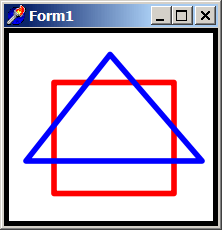
if VG.Attach(Image1.Picture.Bitmap) then begin

  VG.ClearAll(255, 255, 255);
  VG.NoFill;
  VG.LineWidth(10);

  // First rectangle
  VG.Rectangle(0, 0, ClientWidth, ClientHeight);

  // Set viewport to the rectangle in middle
  VG.Viewport(
  0, 0, ClientWidth, ClientHeight, 50, 50, 170, 170, AGG_XMidYMid);

  // The same rectangle in a new viewport coordinates
  VG.LineColor($FF, $00, $00);
  VG.Rectangle(0, 0, ClientWidth, ClientHeight);

  // This blue triangle would be drawn in some parts
  // offscreen in original coordinates system
  VG.LineColor($00, $00, $FF);
  VG.Triangle (100, -50, -50, 140, ClientWidth + 50, 140);

end;
Remarks
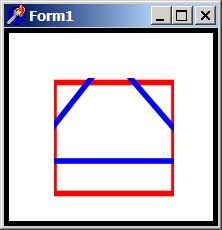
Setting a Viewport with this transformation doesn't automatically crop the area around the destination rectangle (Viewport is just a composite transformation of translation and scaling). So if user wishes to achieve a true Viewport-like effect including cropping around, the clipbox located at the destination rectangle must be applied.
if VG.Attach(Image1.Picture.Bitmap) then begin

  VG.ClearAll(255, 255, 255);
  VG.NoFill;
  VG.LineWidth(10);

  // First rectangle
  VG.Rectangle(0, 0, ClientWidth, ClientHeight);

  // Set viewport to the rectangle in middle
  VG.Viewport(0, 0, ClientWidth, ClientHeight,
  50, 50, 170, 170, AGG_XMidYMid);

  // [!] Applying clipbox on same rectangle as the destination
  // rectangle, to achieve a true Viewport-like effect
  VG.ClipBox(50, 50, 170, 170);

  // The same rectangle in a new viewport coordinates
  VG.LineColor($FF, $00, $00);
  VG.Rectangle(0, 0, ClientWidth, ClientHeight);

  // This blue triangle is cropped in some parts
  // in the same way, as if it would be offscreen
  // in original coordinates system
  VG.LineColor($00, $00, $FF);
  VG.Triangle (100, -50, -50, 140, ClientWidth + 50, 140);

end;